
How to Approve a Bill

Approving a bill records it in your accounts and includes it in payables and financial reports. Open a draft bill. Review all details.

Last updated

Quick answer

To approve a bill in CFO12, go to Pay & Expenses → Bills, open the draft bill, review all its details and click Approve. The status changes from Draft to Approved, and the bill is recorded in your accounts, appearing in Aged Payables and your financial reports. Approve bills promptly to keep Accounts Payable accurate.

Approving a bill records it in your accounts and includes it in payables and financial reports.
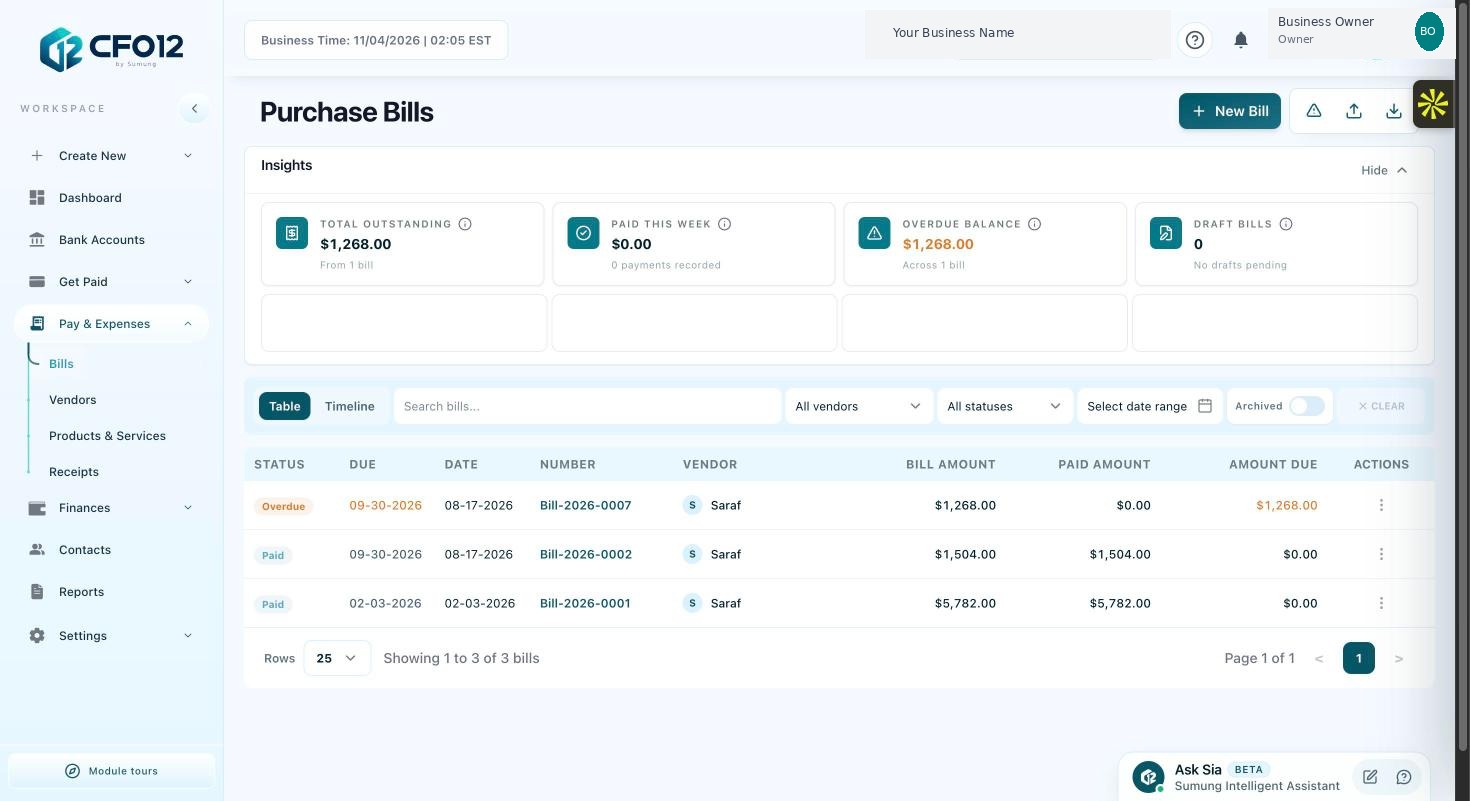
How to Approve a Bill screenshot

What You Can Do

  1. Open a draft bill.
  2. Review all details.
  3. Click Approve.
  4. The bill status changes from Draft to Approved.
  5. The bill now appears in Aged Payables and financial reports.

💡 Approve bills promptly to keep your Accounts Payable balance accurate.

Related Articles

Was this article helpful?

Your feedback helps us improve our documentation.

Frequently asked questions

Can I approve a bill straight away when I create it?

Yes. When creating a bill you can click Approve instead of Save as Draft to approve it immediately.

Can I still edit a bill after approving it?

Some fields may be locked once a bill is approved, so make any edits while it is still a draft.

Should I approve a bill before paying it?

Yes. Always approve bills before making a payment so your records stay accurate; only approved bills are included in vendor payment tracking.

Complete guideBills and expenses in CFO12: complete guide