
How to Record a Payment on a Bill

When you pay a vendor, record the payment on the bill to update its status. Open the bill you have paid. Look for the payment recording option on the bill…

Last updated

Quick answer

To record a payment on a bill in CFO12, open the paid bill from Pay & Expenses → Bills and use the payment recording option on the bill detail page. Enter the payment date and amount, then save. The status changes to Paid when the full amount is covered; a partial payment reduces the remaining balance.

When you pay a vendor, record the payment on the bill to update its status.
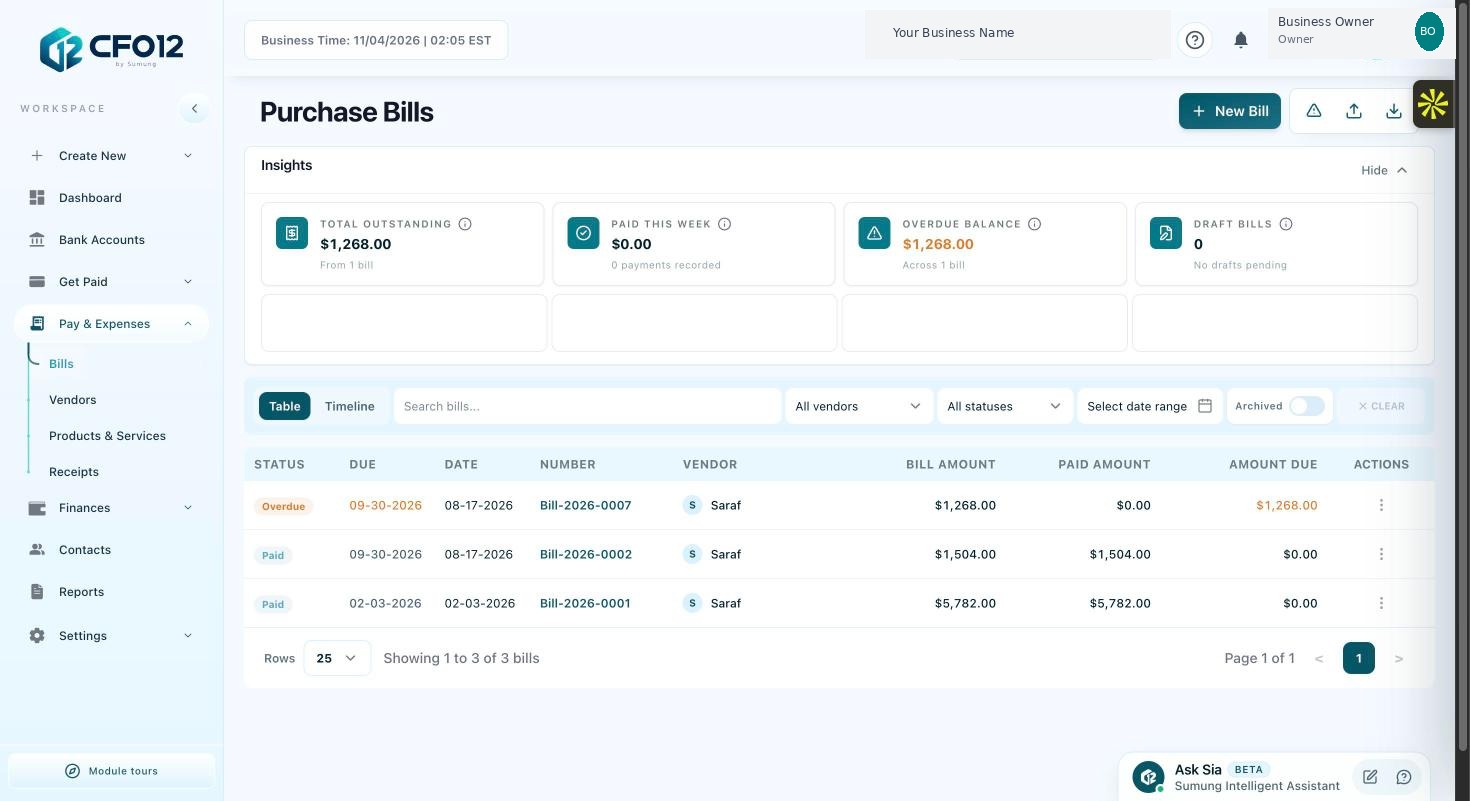
How to Record a Payment on a Bill screenshot

What You Can Do

  1. Open the bill you have paid.
  2. Look for the payment recording option on the bill detail page.
  3. Enter the payment date and amount.
  4. Save the payment. The bill status updates to Paid if the full amount is covered.
  5. Partial payments update the remaining balance.

💡 Link payments to bank transactions during reconciliation to keep your books balanced.

Related Articles

  • How to Save and Approve a Bill
  • How to View the Aged Payables Report
  • How to View Bank Account Transactions

Was this article helpful?

Your feedback helps us improve our documentation.

Frequently asked questions

Can I record a partial payment on a bill?

Yes. Enter the amount you paid; a partial payment updates the bill's remaining balance instead of marking it Paid.

Where can I see the payments already made on a bill?

Open the bill's detail page. Payment history is shown there if any payments have been recorded.

How do I keep bill payments matched to my bank account?

Link payments to bank transactions during reconciliation to keep your books balanced.

Complete guideBills and expenses in CFO12: complete guide