
What Are Auto Rules in Bank Accounts?

Auto Rules let you define rules that automatically categorise bank transactions when they are imported. Go to Bank Accounts.

Last updated

Quick answer

Auto Rules in CFO12 automatically categorise bank transactions when they are imported. Go to Bank Accounts, click Auto Rules and create a rule with the conditions a transaction must match and the category to apply. Matching transactions are then categorised on import, and you review them to confirm they are correct.

Auto Rules let you define rules that automatically categorise bank transactions when they are imported.
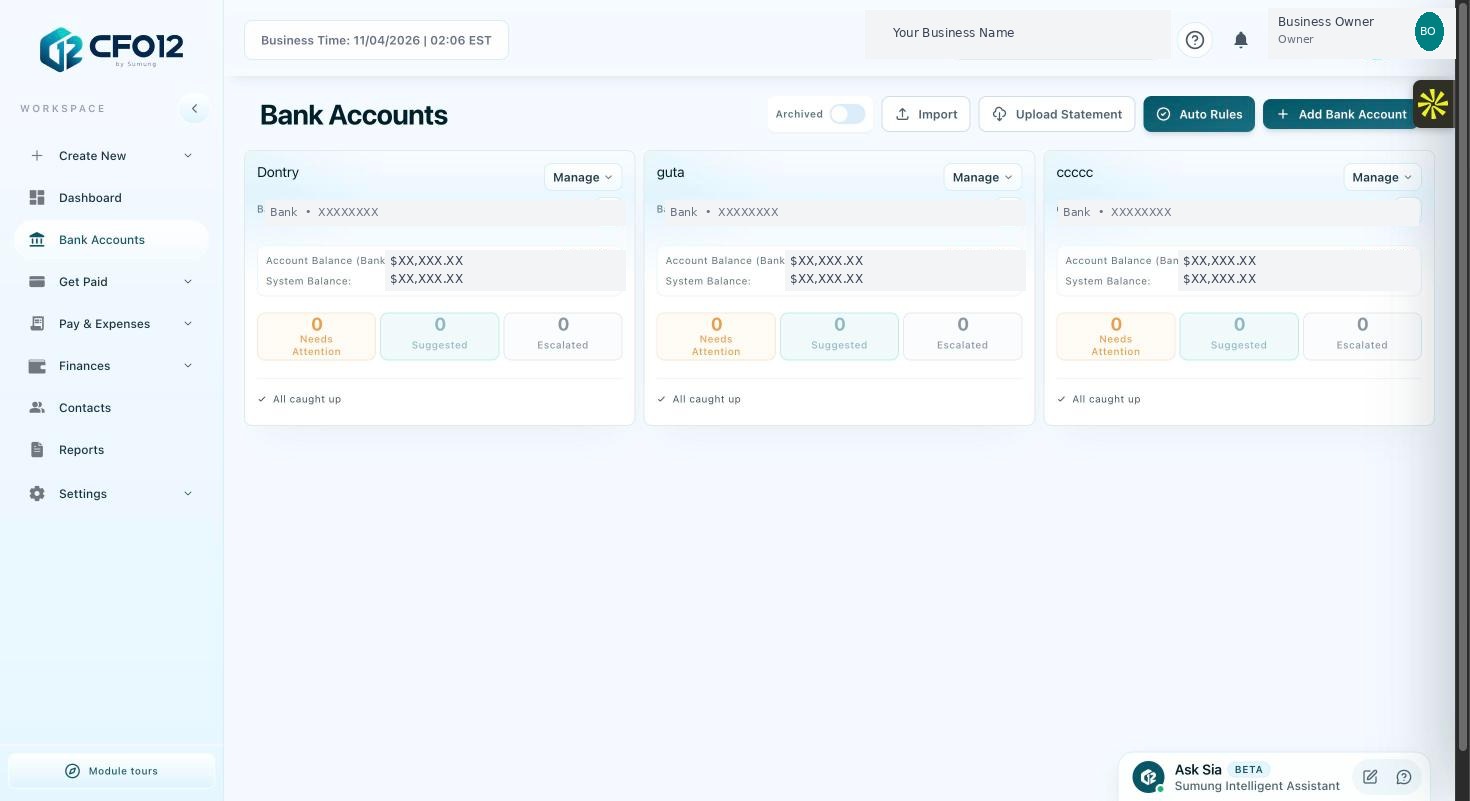
What Are Auto Rules in Bank Accounts? screenshot

What You Can Do

  1. Go to Bank Accounts.
  2. Click Auto Rules.
  3. Create a new rule by defining the conditions (e.g., a condition to match the transaction) and the category to apply.
  4. When you import transactions, matching ones are automatically categorised using your rules.
  5. Review auto-categorised transactions to confirm they are correct.

💡 Auto Rules save time by reducing manual categorisation when you import bank statements.

Related Articles

Was this article helpful?

Your feedback helps us improve our documentation.

Frequently asked questions

Do I still need to check transactions categorised by Auto Rules?

Yes. After each import, review the transactions categorised by Auto Rules and verify the assigned account. Edit any that are wrong, and update the rule if you see a pattern of incorrect matches.

Why did an Auto Rule stop matching a vendor's payments?

Auto Rules rely on the transaction descriptions from your bank, so a rule can stop matching if a vendor changes how its transactions are described. Update the rule's conditions when that happens.

Can I delete an Auto Rule I no longer need?

Yes. Go to Bank Accounts, click Auto Rules and review the list of active rules. You can update or delete any rule that is no longer accurate.

Complete guideBank reconciliation in CFO12: complete guide