
How to Import Bank Transactions

Import bank statement files into CFO12 to record transactions from your financial institution. Go to Bank Accounts and open the relevant account.

Last updated

Quick answer

To import bank transactions into CFO12, first download your statement from your bank's online portal. Then go to Bank Accounts, open the relevant account, click Import, upload the statement file and follow the on-screen steps to confirm. The transactions are added to the account, ready to be categorised and matched.

Import bank statement files into CFO12 to record transactions from your financial institution.
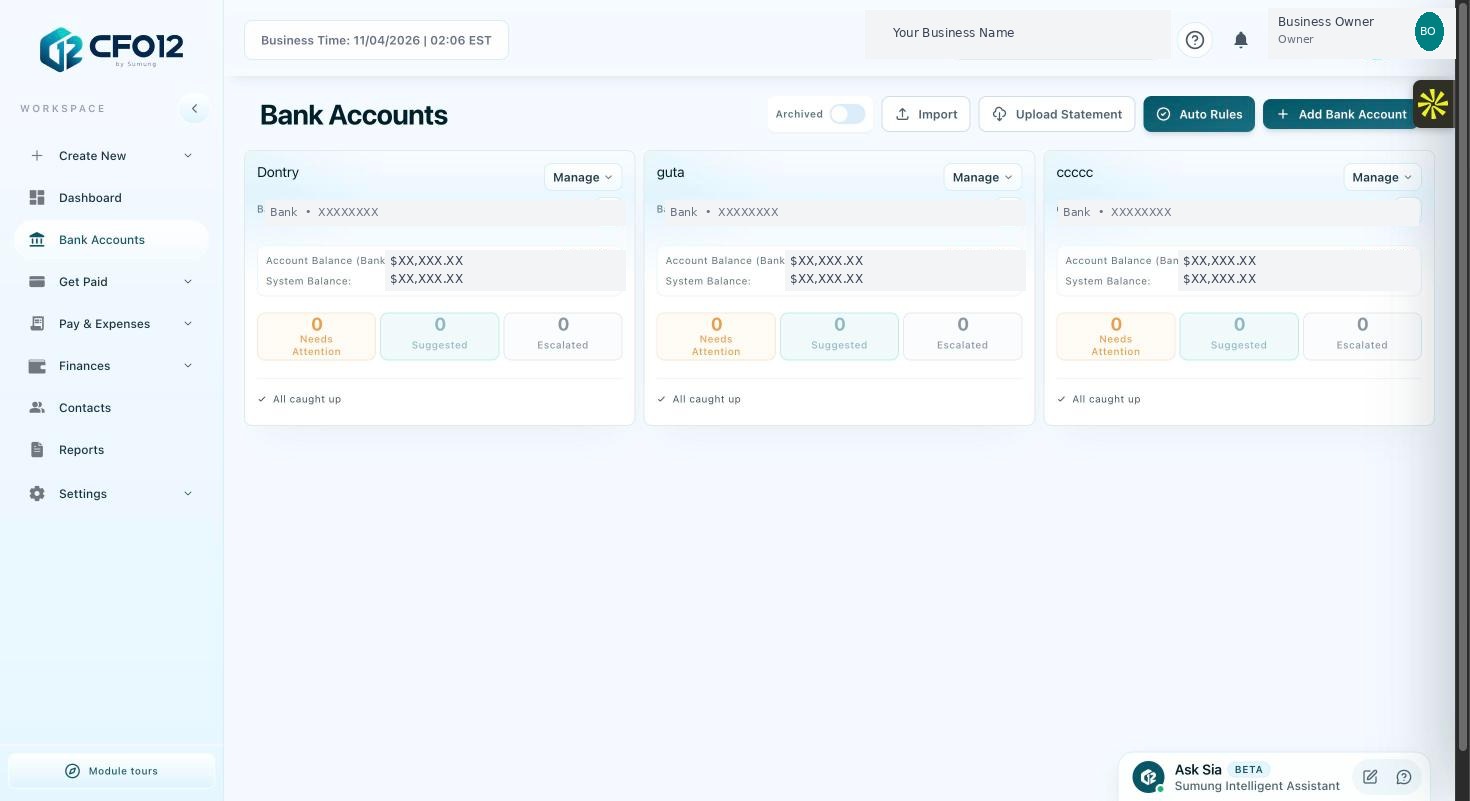
How to Import Bank Transactions screenshot

What You Can Do

  1. Go to Bank Accounts and open the relevant account.
  2. Click Import.
  3. Select or upload your bank statement file.
  4. Follow the on-screen steps to confirm the import.
  5. Transactions are added to the account and can be categorised and matched.

💡 Download your bank statement from your bank's online portal before importing.

Related Articles

Was this article helpful?

Your feedback helps us improve our documentation.

Frequently asked questions

How often should I import bank transactions?

At least monthly so your reports stay accurate. Weekly imports work well for busier businesses with more transactions.

Can imported transactions be categorised automatically?

Yes, if you set up Auto Rules. Transactions that meet a rule's conditions are categorised automatically on import, and you should review them afterwards to confirm the account is correct.

What should I do if a transaction was imported twice?

Open the account, find the duplicate, use its delete option and confirm. Deletion is permanent, so only remove transactions that are true duplicates or errors.

Complete guideBank reconciliation in CFO12: complete guide