
How to Add a New Customer

Adding a customer to CFO12 lets you create invoices and statements for them quickly. Go to Get Paid > Customers, or click Create New > New Customer in the…

Last updated

Quick answer

To add a customer in CFO12, go to Get Paid, Customers and click New Customer, or choose Create New, then New Customer, in the sidebar. Enter the contact's name, email and type, optionally add their address and other details, and click Save. You can then create invoices and statements for them.

Adding a customer to CFO12 lets you create invoices and statements for them quickly.
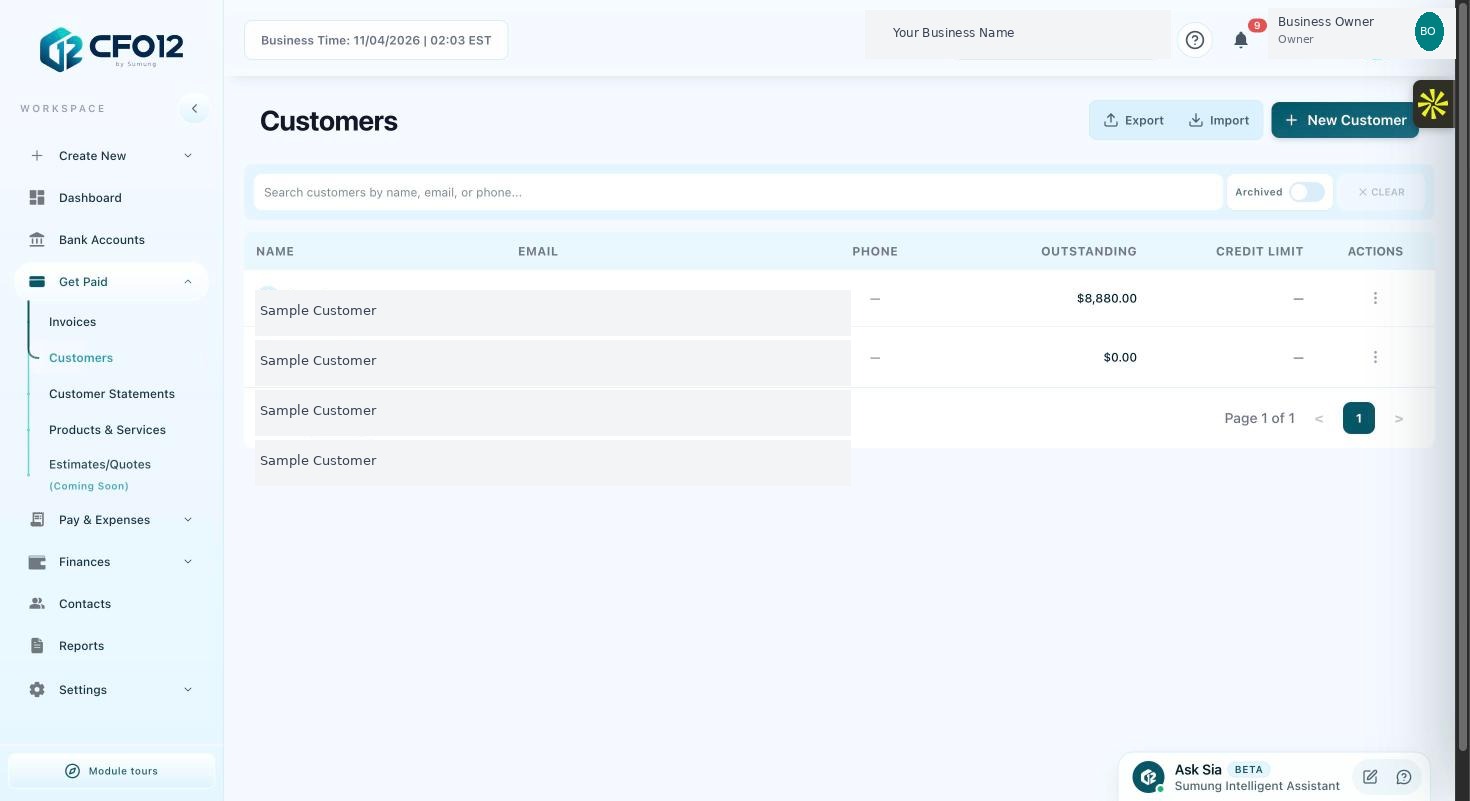
How to Add a New Customer screenshot

What You Can Do

  1. Go to Get Paid > Customers, or click Create New > New Customer in the sidebar.
  2. Click New Customer.
  3. Fill in the contact's name, email, and type.
  4. Optionally add their address and other details.
  5. Click Save to create the contact.

💡 The Account number field helps you match the customer during imports and bank feed matching.

Related Articles

Was this article helpful?

Your feedback helps us improve our documentation.

Frequently asked questions

Can I import my existing customer list?

Yes. On the Customers page use the import option, download the template, fill in your customer data and upload the completed CSV or XLSX file. For a full move from another system, use the Migration tool under Settings.

What is the Account number field on a customer for?

It helps you match the customer during imports and bank feed matching.

What happens when I archive a customer?

Archived customers are hidden from the main Customers list, but their invoice history is kept. Click Archived on the Customers page to view them or unarchive them.

Complete guideInvoicing and getting paid in CFO12: complete guide