The Receipts section in CFO12 gives you a central place to view all your uploaded expense receipts.
What You Can Do
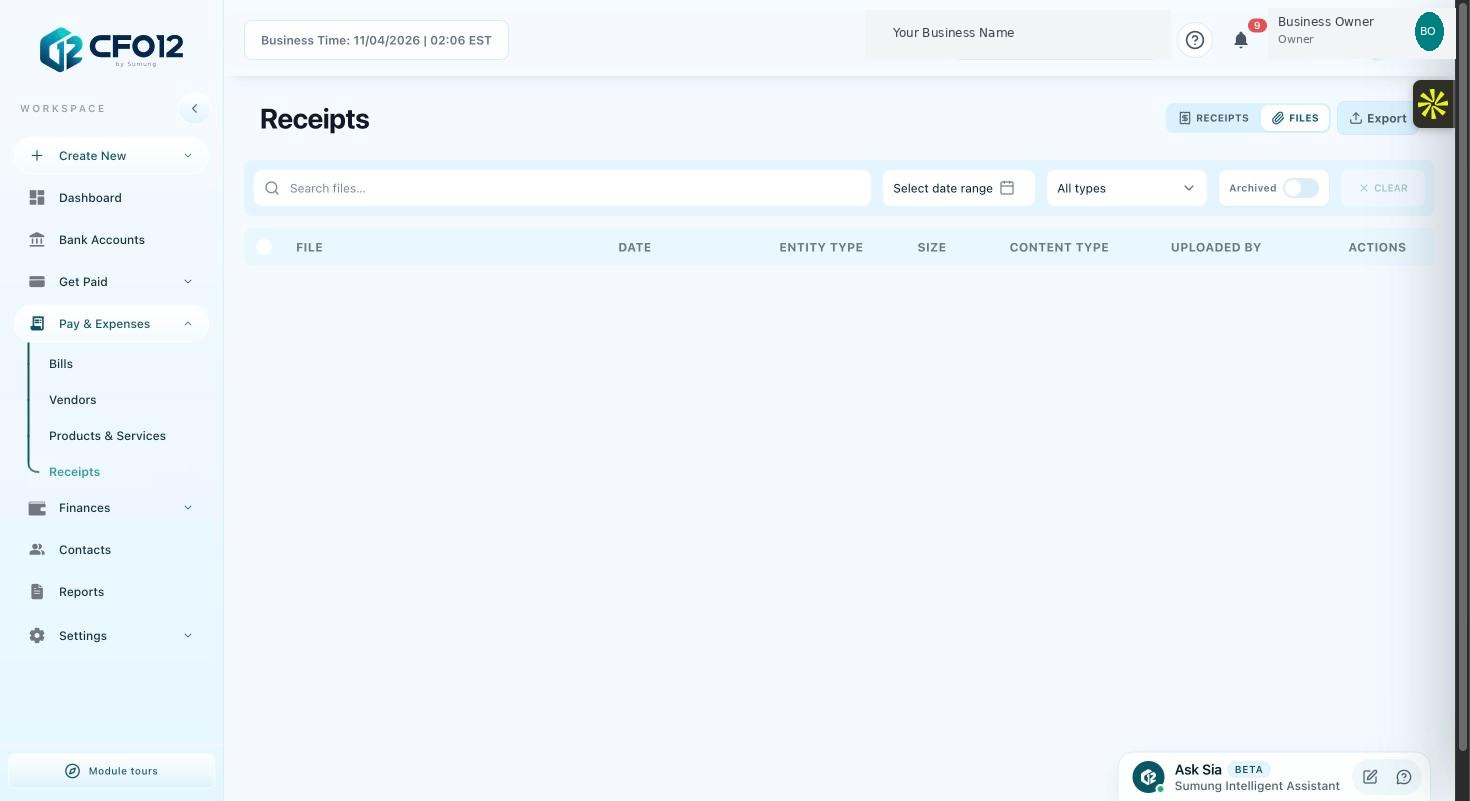
- Go to Pay & Expenses in the left sidebar.
- Click Receipts to open the Receipts page.
- The RECEIPTS tab is active by default and shows all your uploaded receipts.
- Click any receipt in the list to view its details.
- Click the FILES tab to see all uploaded files associated with your receipts.
💡 Tip: Use the FILES tab if you want to browse all uploaded documents in one place.
Related Articles
- How to Upload a Receipt
- What Is the RECEIPTS Tab?
- What Is the FILES Tab on the Receipts Page?
Was this article helpful?
Your feedback helps us improve our documentation.