
How to Record a Payment on an Invoice

When a customer pays an invoice, you record the payment in CFO12 to update the invoice status. Go to Get Paid > Invoices and open the invoice that has been…

Last updated

Quick answer

To record a payment on an invoice in CFO12, go to Get Paid, Invoices and open the invoice that has been paid. Use the payment recording option on the invoice detail page, enter the payment date, amount and payment method, and save. The status changes to Paid when the full amount is covered.

When a customer pays an invoice, you record the payment in CFO12 to update the invoice status.
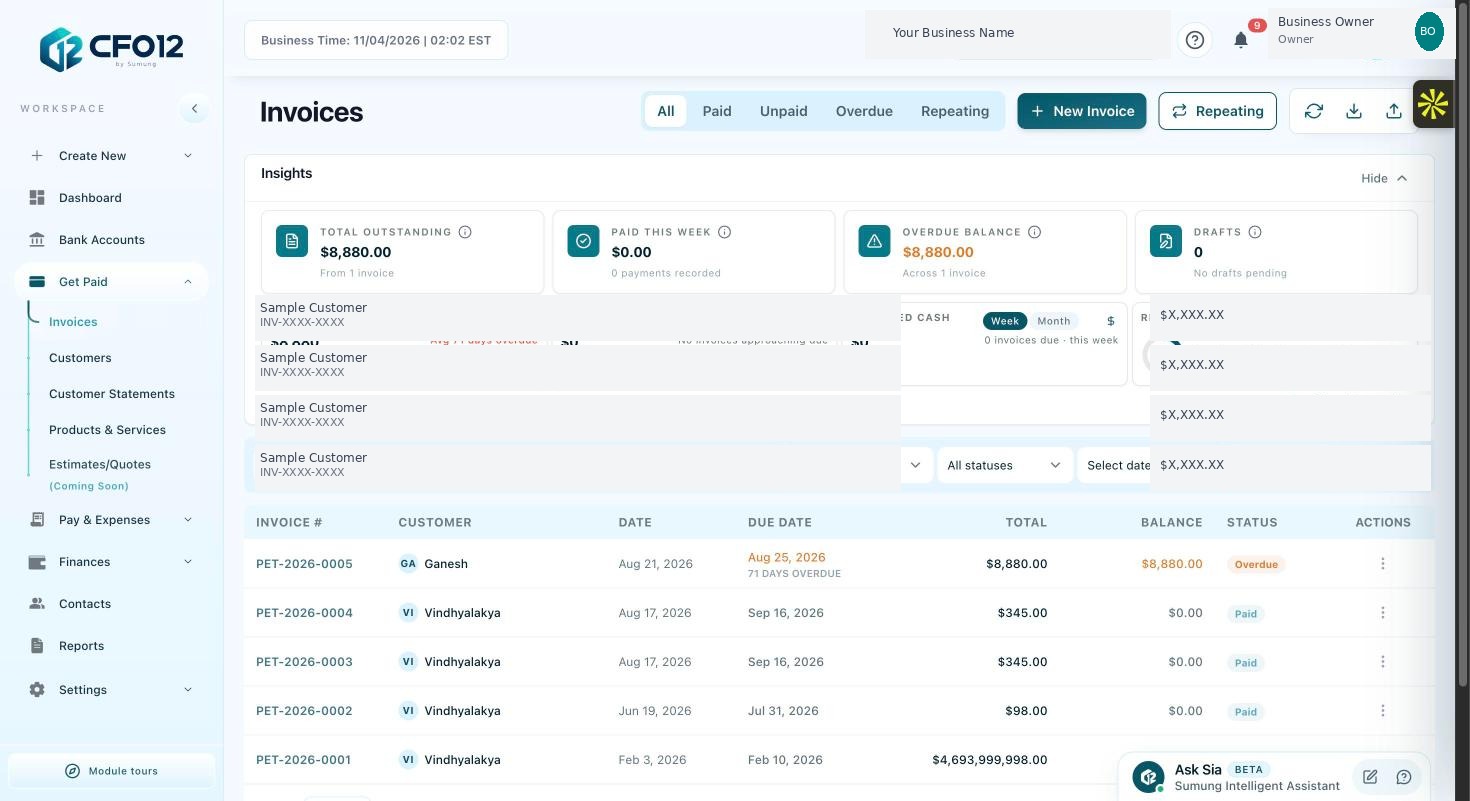
How to Record a Payment on an Invoice screenshot

What You Can Do

  1. Go to Get Paid > Invoices and open the invoice that has been paid.
  2. Look for the payment recording option on the invoice detail page.
  3. Enter the payment date, amount, and payment method.
  4. Save the payment. The invoice status updates to Paid if the full amount is covered.
  5. Partial payments update the remaining balance on the invoice.

💡 Linking payments to bank transactions during bank reconciliation keeps your books accurate.

Related Articles

Was this article helpful?

Your feedback helps us improve our documentation.

Frequently asked questions

What happens if the customer only pays part of the invoice?

Record the amount received as a payment. A partial payment reduces the remaining balance on the invoice, and the status changes to Paid only once the full total is covered.

Where do I find invoices that have been paid?

Click the Paid tab on the Invoices page. It lists every invoice with a Paid status, and you can narrow it with the customer and date range filters.

Should invoice payments be linked to my bank transactions?

Yes. Linking payments to bank transactions during bank reconciliation keeps your books accurate and confirms the money actually reached your account.

Complete guideInvoicing and getting paid in CFO12: complete guide