
How to Approve an Invoice

Approving an invoice changes its status from Draft to Approved, making it ready to send. Open a draft invoice from the Invoices list.

Last updated

Quick answer

To approve an invoice in CFO12, open the draft from the Invoices list under Get Paid, review all the details and click Approve at the bottom of the form. The status changes from Draft to Approved. Approving does not send the invoice; use Save & Send to approve and email it at once.

Approving an invoice changes its status from Draft to Approved, making it ready to send.
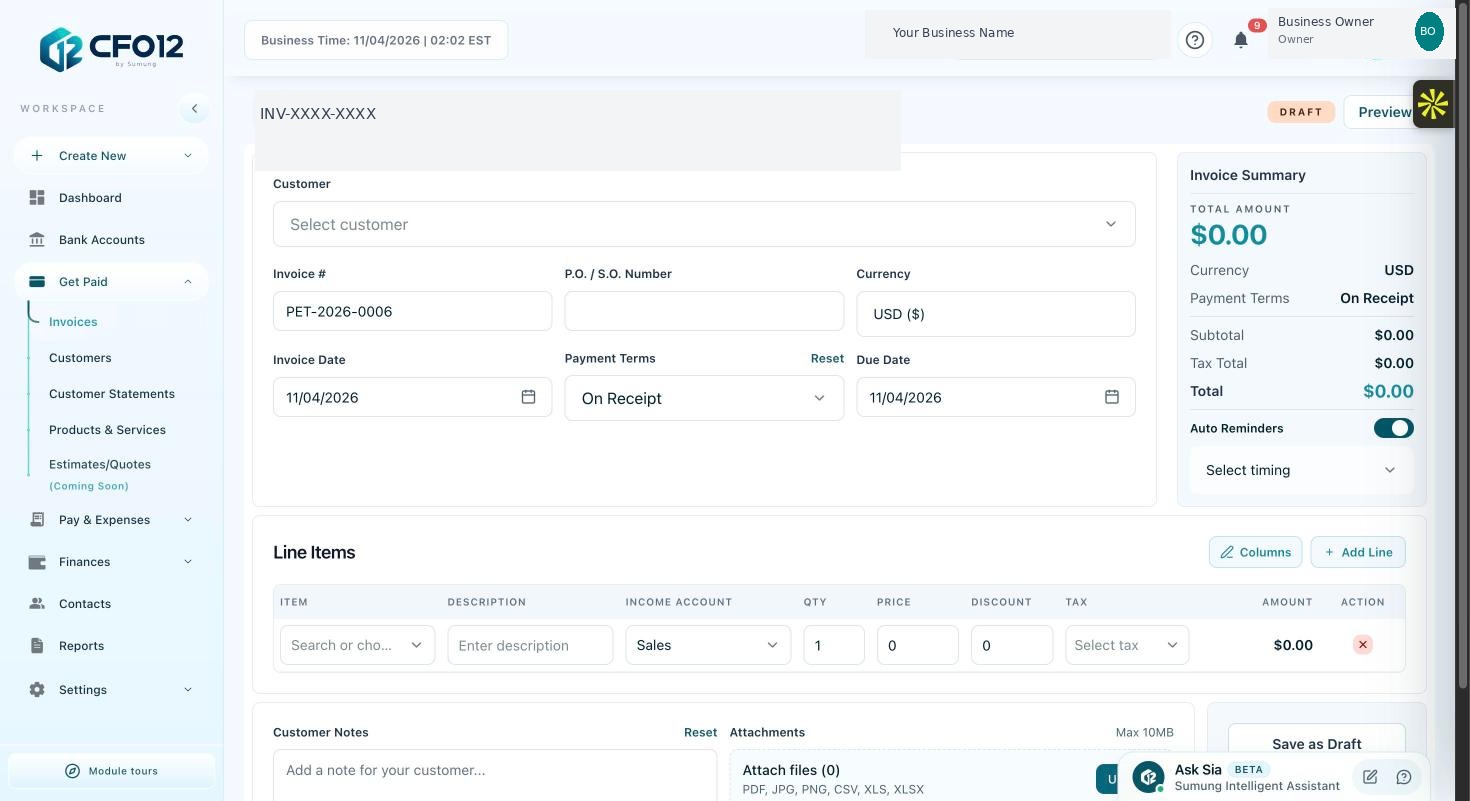
How to Approve an Invoice screenshot

What You Can Do

  1. Open a draft invoice from the Invoices list.
  2. Review all details to ensure they are correct.
  3. Click the Approve button at the bottom of the invoice form.
  4. The invoice status changes to Approved.
  5. You can then send it to the customer using Save & Send or by emailing separately.

💡 Approving an invoice does not automatically send it. Use Save & Send to do both at once.

Related Articles

Was this article helpful?

Your feedback helps us improve our documentation.

Frequently asked questions

Can I edit an invoice after approving it?

Some fields may be locked once an invoice is approved and sent, so make your edits while it is still a draft. Any field on a draft invoice can be changed before approval.

Does an approved invoice count toward what the customer owes?

Yes. Outstanding invoices are those that are approved but not yet fully paid, and they make up the customer's outstanding balance. Draft invoices are excluded from customer statements and outstanding balance calculations.

Why keep an invoice as a draft before approving it?

A draft lets you check the customer, dates, line items and totals before the invoice is finalised. Drafts are not visible to the customer, so you can save and return to them at any time.

Complete guideInvoicing and getting paid in CFO12: complete guide